The software

Signage your whole team can run.

Reboot Signage is the dashboard you use to put things on your TVs. Build a screen, see exactly how it will look, and publish it to every TV in one click. No design skills, no app to install, and no per-screen monthly fees.

Real screens, not mock-ups. Everything on this page is the actual software.

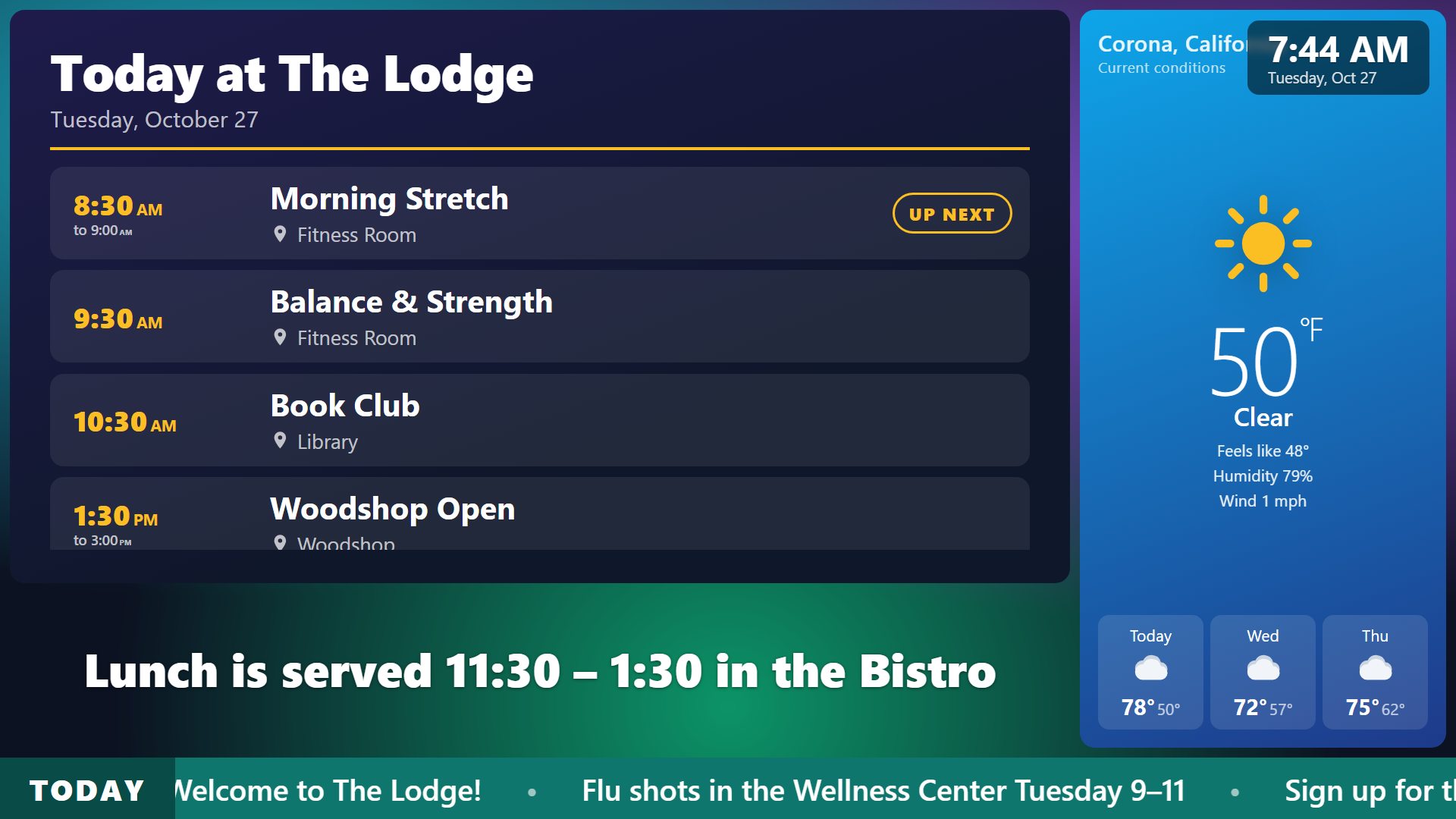
A lobby TV showing today's activities, the weather and a scrolling ticker.
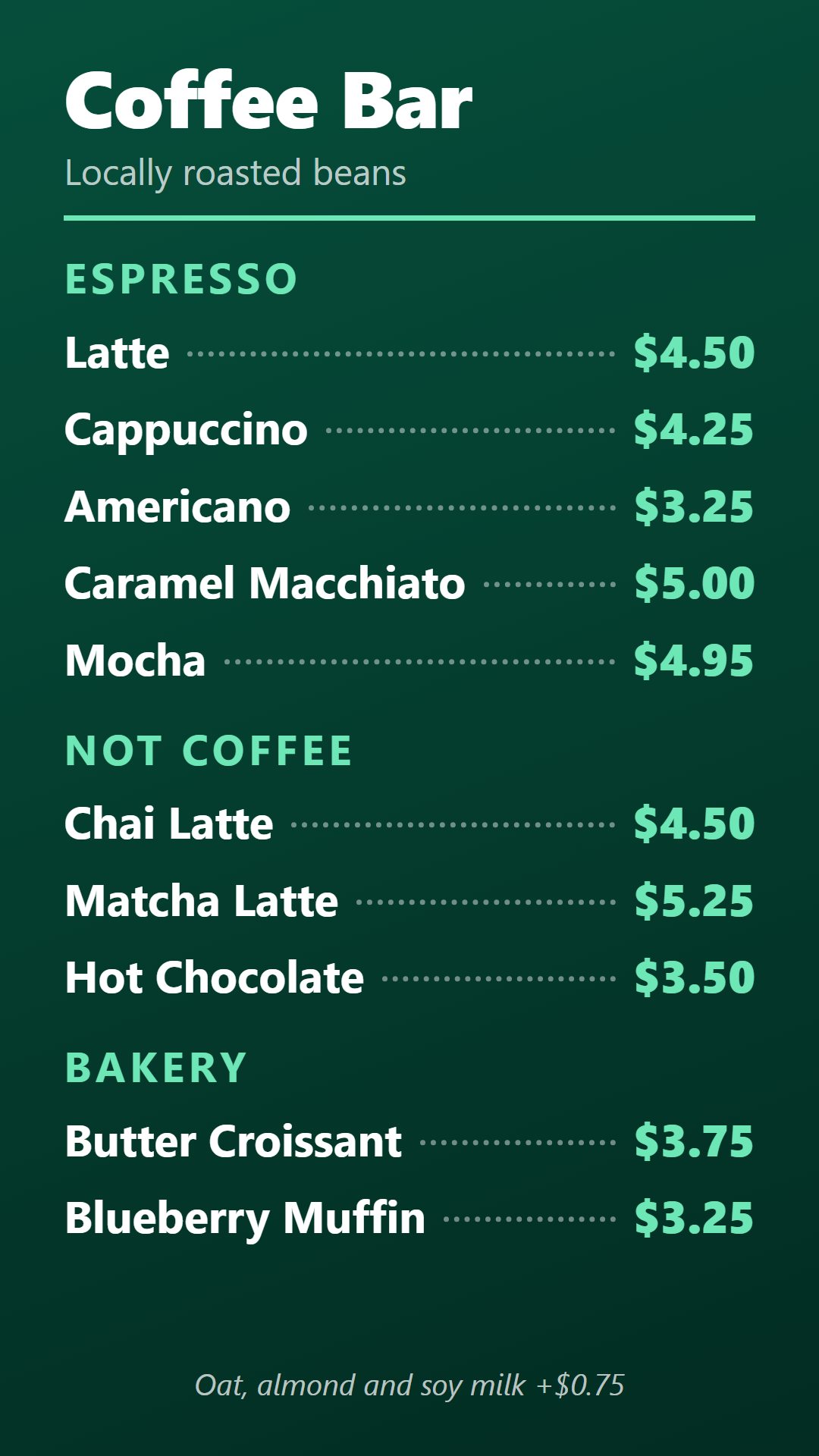
A portrait menu board for a coffee bar, with prices.

Two real screens from the demo: a lobby TV with the day's activities, the weather and a scrolling ticker, and a portrait menu board.

Everything you need, nothing you don't

The features that matter for real buildings: menus that change daily, activity calendars, lobby screens and TVs mounted sideways.

Campaign builder

Build a screen and watch it come together

A campaign is what a TV plays: a slideshow, with as many zones, slides and extras as you like. Everything you change shows up in the live preview straight away.

  • Slides for photos and videos, web pages, weather, news, announcements and widgets.
  • Split the screen into zones: a menu beside the weather, an event list under a promo.
  • Add a background, a scrolling ticker, a clock, your logo and transitions.
  • Publish when you’re ready. Nothing on the TVs changes until you do.
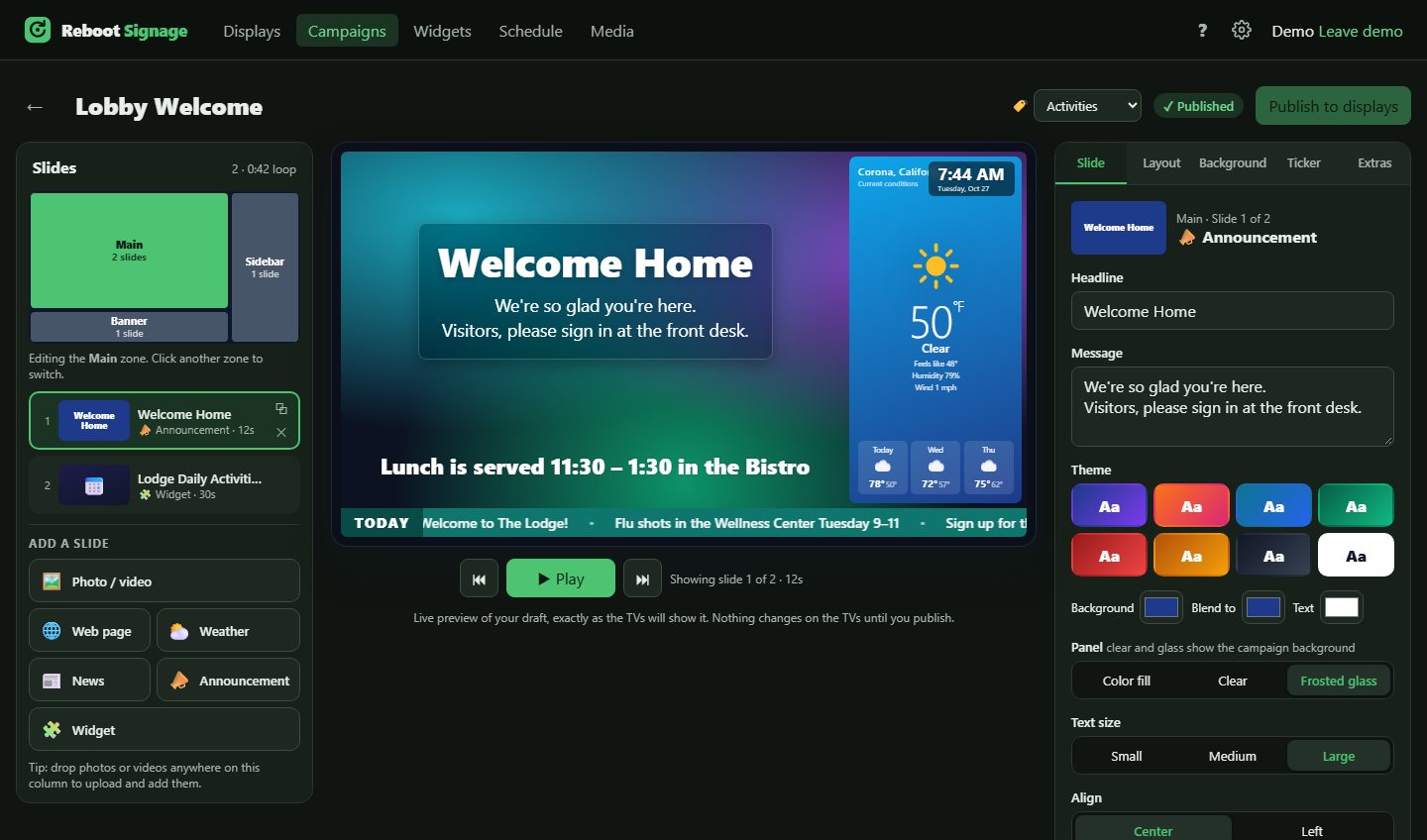
The campaign builder, with a slide list on the left, a live preview in the middle and slide settings on the right.

Widgets

Menus and activity calendars, made once and used everywhere

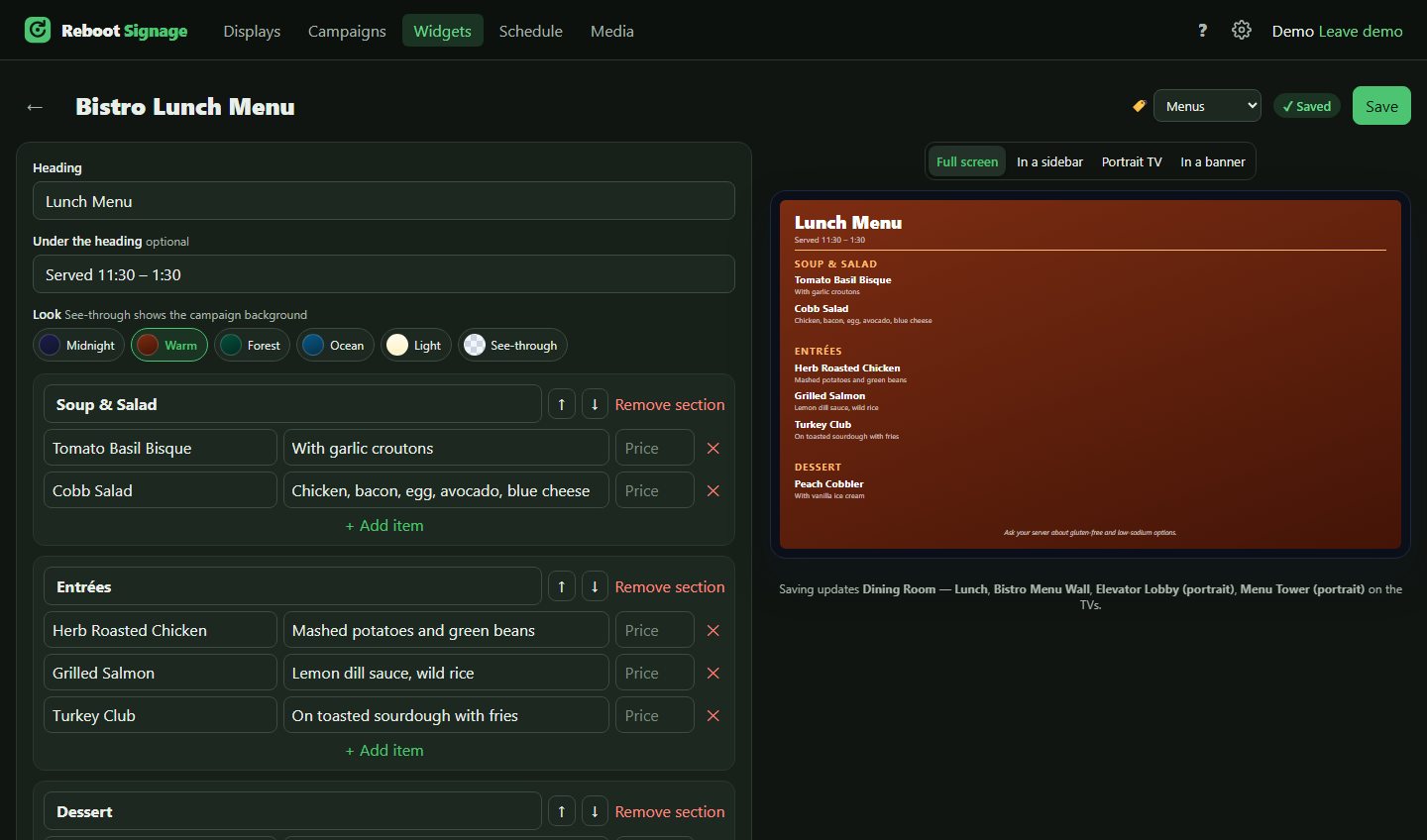
Type a menu or a week of activities into a simple form. Drop it into any campaign, and when you change it, every screen showing it updates.

  • Menu boards with sections, descriptions and prices.
  • Daily activity schedules that mark what’s up next and fade what’s over.
  • Six looks to choose from, including see-through over your own background.
  • Previews for full screen, sidebar, portrait and banner, so it fits wherever it goes.
Editing the Bistro Lunch Menu widget, with a preview of the menu board on the right.

Schedules

The right content at the right time, on its own

Show the lunch menu at lunchtime, happy hour in the evening, or a holiday promo the week before. Set it once and the TVs switch by themselves.

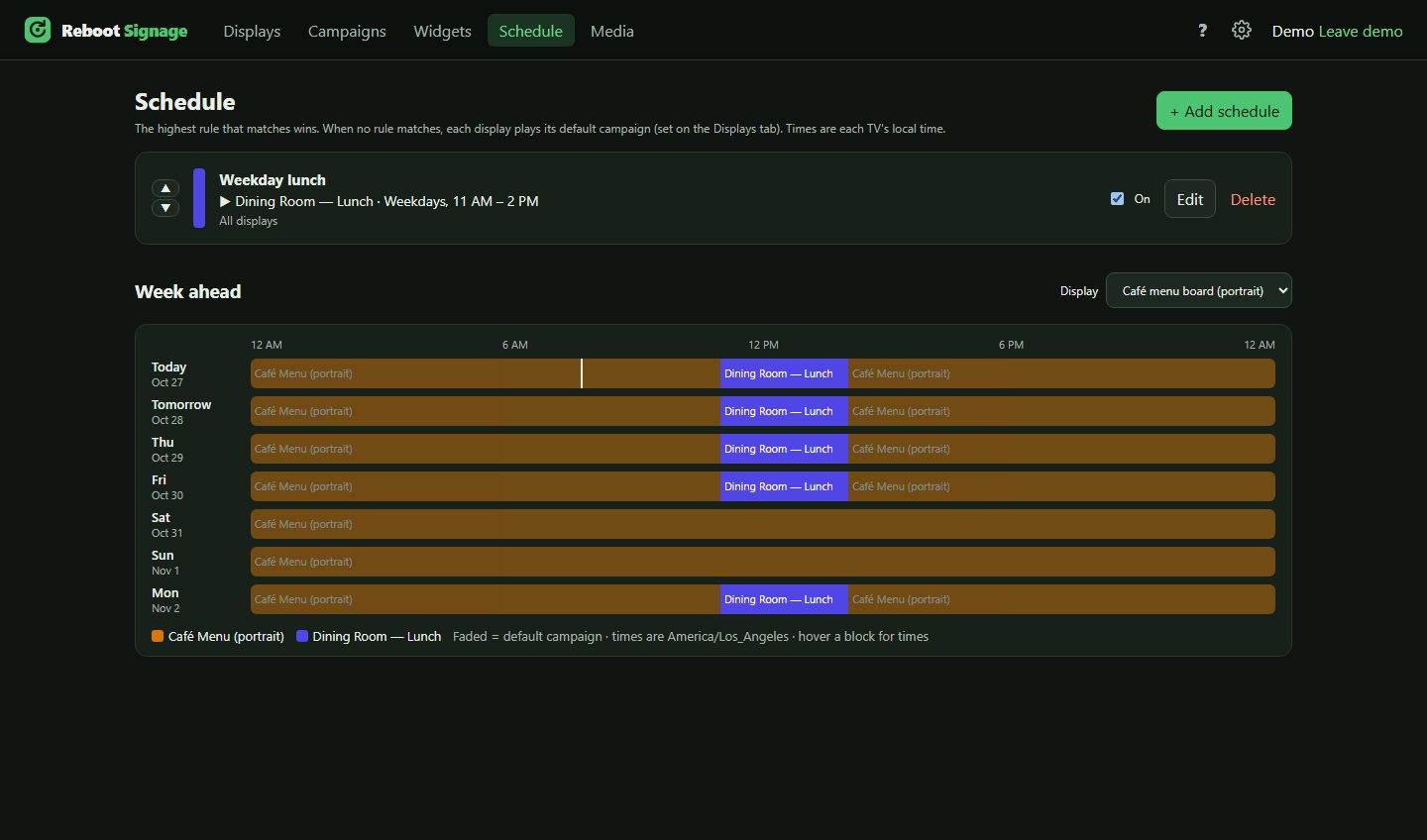
  • Rules by day of the week and time, for all TVs or just the ones you pick.
  • A week-ahead timeline shows exactly what each TV will play, before it happens.
  • Each TV follows its own time zone, for sites in more than one.
The Schedule page, showing a weekday lunch rule and a week-ahead timeline for one display.

Layout designer

Use a ready-made layout, or draw your own

Seventeen built-in layouts cover most screens, from full screen to an L-bar to four-up, plus portrait layouts for TVs mounted sideways. Need something different? Drag it out.

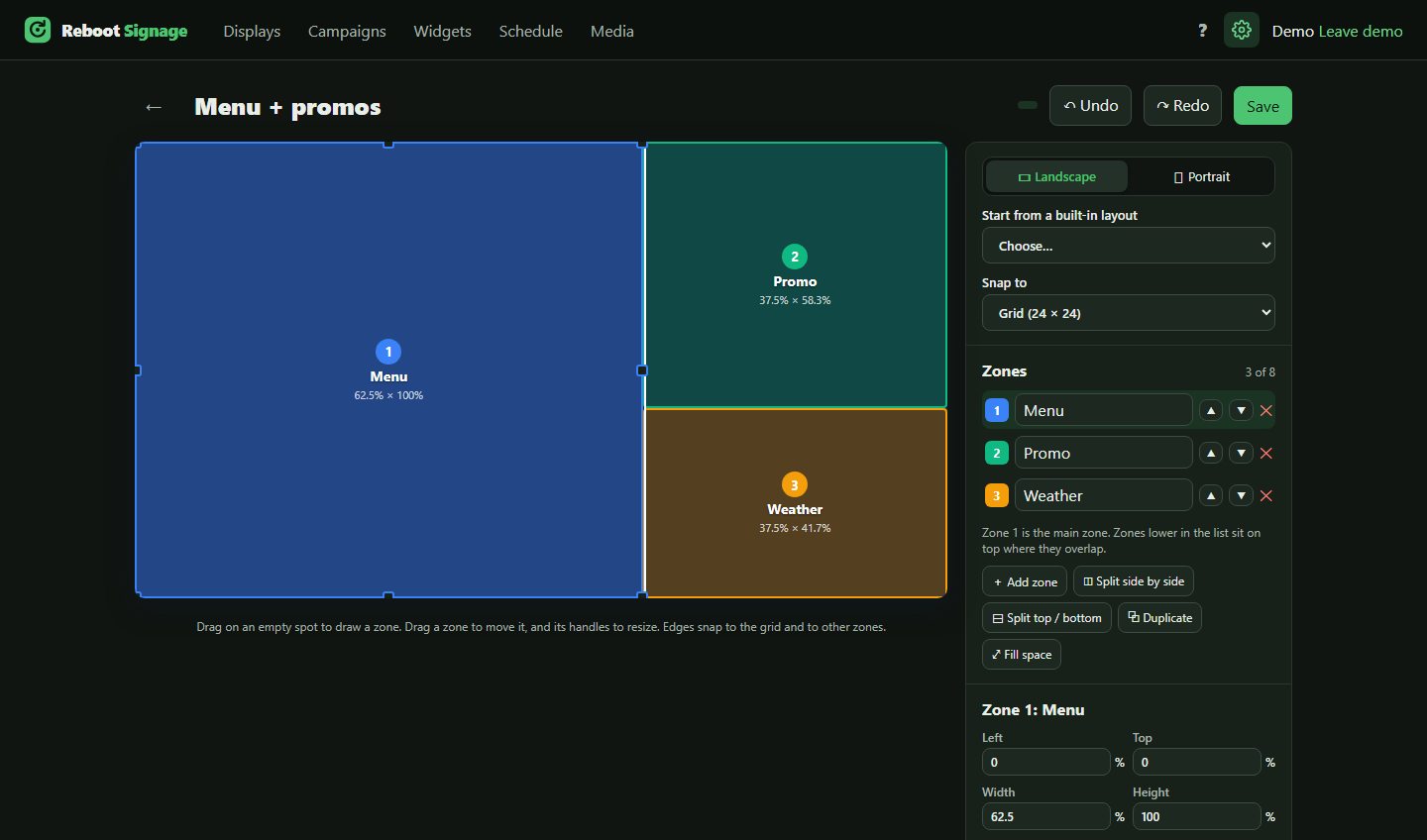
  • Drag and drop to draw, move and resize zones. Edges snap to a grid and to each other.
  • Up to eight zones per layout, landscape or portrait.
  • Undo and redo, so you can try ideas without worrying.
The layout designer, with three zones (Menu, Promo, Weather) drawn on a landscape screen.

Displays

Every TV in one place

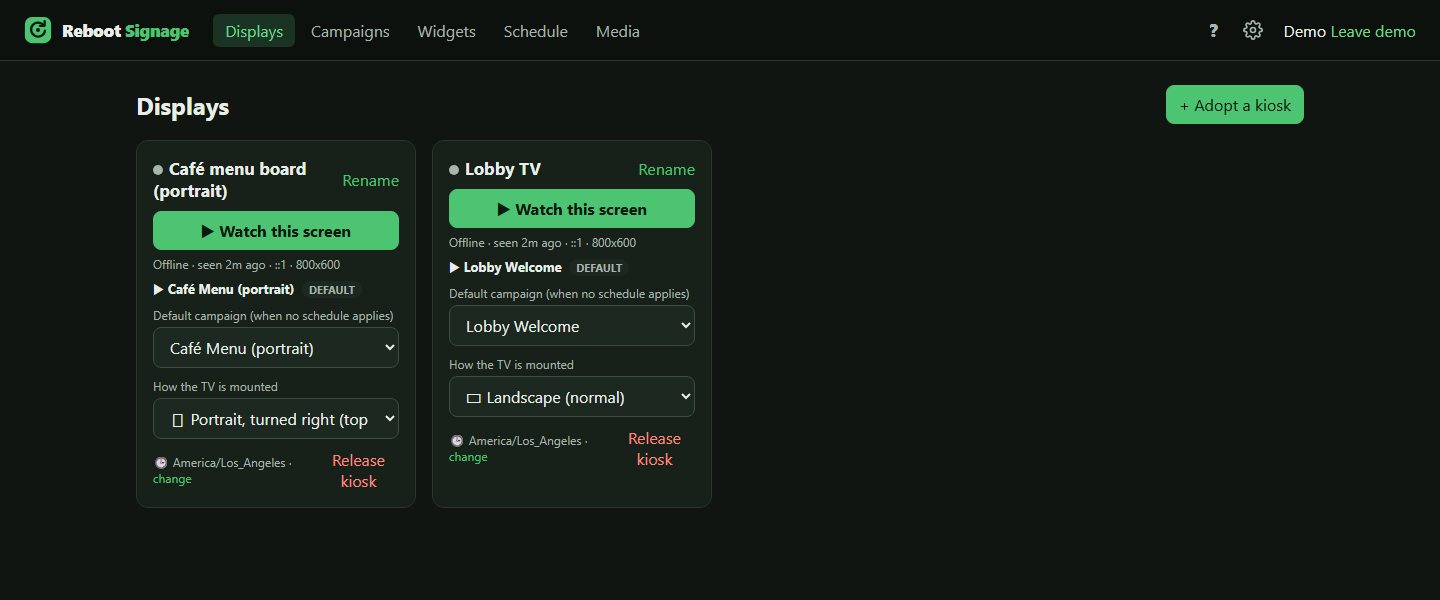
See which TVs are online and what each one is playing. Choose a TV’s default campaign from a list. Add a new TV in about a minute.

  • Adopt a new TV by typing the short code it shows on screen.
  • TVs mounted sideways (portrait) are a setting, not a project.
  • Players start by themselves when switched on and keep playing if the internet drops.
The Displays page with two TVs, each showing what it plays, how it is mounted and its time zone.

Organized

Stays tidy at 4 screens or 40

Sort campaigns and widgets into your own categories (Dining, Activities, Holidays, whatever suits you) and filter with one click. Duplicate anything to start from something similar.

  • Color-coded categories for campaigns and widgets.
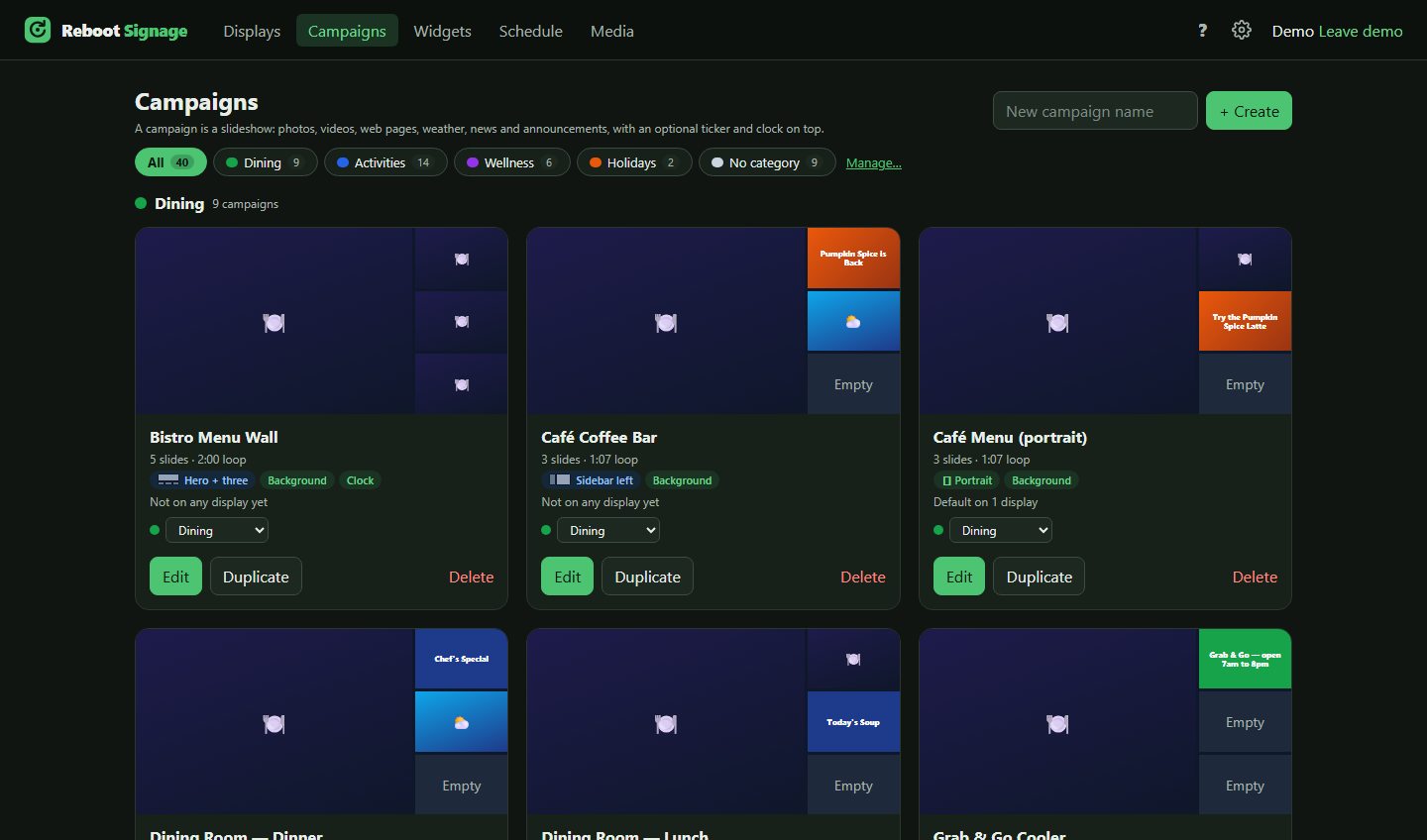
  • Each campaign card shows its layout, length and which TVs are playing it.
The Campaigns page, filtered into Dining, Activities, Wellness and Holidays categories.

Built-in help

Answers without a phone call

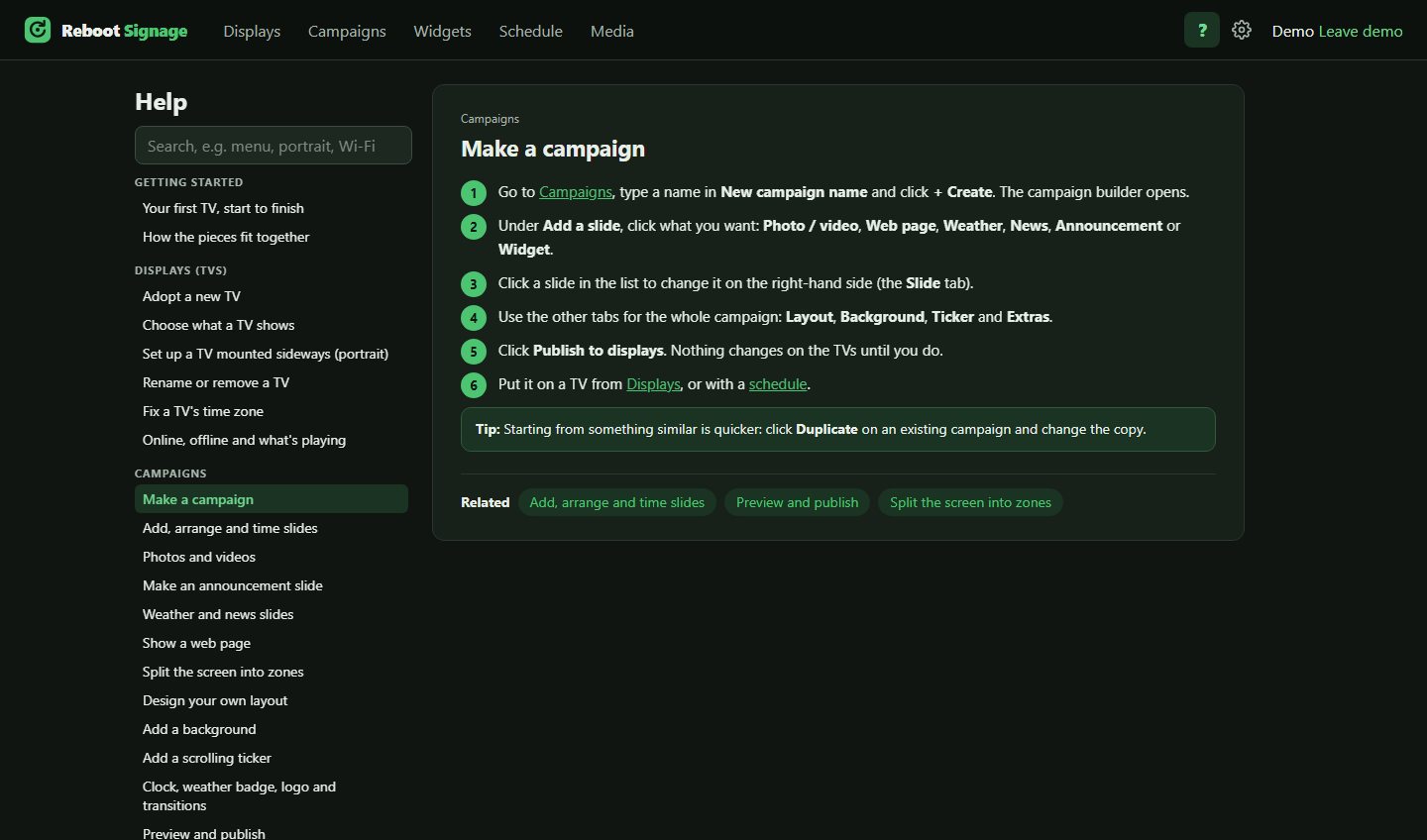
Click the question mark for short, step-by-step guides to every part of the system, with a search box. It’s built into the dashboard, so the answer is always one click away.

  • Guides for TVs, campaigns, widgets, schedules, layouts and settings.
  • Links take you straight to the page the guide is about.
The built-in Help, showing the step-by-step guide to making a campaign.

And the things you'd expect

Works on your network

Everything runs on your own server. Your screens keep playing if the internet goes down.

Kiosk setup without a keyboard

Put a player’s Wi-Fi details straight onto its SD card from the Network page before you go on site.

Runs on old PCs

The server and players are retired office PCs. See the hardware checklist.

Team logins

Give each person their own login. Their work stays theirs, and you manage it from Settings.

No app to install

Use any web browser on a computer, tablet or phone on the same network.

No per-screen fees

Pay once for your server and add TVs as you need them. See pricing.

How simple is it? Your first screen in four steps.

Here’s the whole job, from a new TV to something on it.

  1. Add the TV

    Plug the player into the TV and switch it on. It shows a short code. On Displays, click Adopt a kiosk and type the code. That’s the TV added.

    The Displays page, where new TVs are adopted.
  2. Make a campaign

    On Campaigns, type a name and click Create. Pick a layout, then add slides: an announcement, a photo, the weather, a menu. The preview shows exactly what the TV will show.

    The campaign builder with a welcome announcement and a weather sidebar.
  3. Publish it

    Click Publish to displays and choose the campaign for your TV. It’s on screen within about 15 seconds. Change something later? Edit, publish, done.

    The finished lobby screen as shown on the TV.
  4. Schedule it (optional)

    Want the lunch menu at lunchtime only? Add a schedule and the TV switches by itself. The week-ahead timeline shows you exactly what will play.

    The Schedule page with a weekday lunch rule.

Try it live. It's yours to play with.

Open the real dashboard in your browser with sample content already in it: 40 campaigns, 20 widgets, a schedule and two TVs. Change anything you like. Nobody else sees your copy.

  • No sign-up. You’re logged straight in.
  • Watch a TV play your changes, right in another browser tab.
  • Your own private copy, erased automatically after two hours.
  • Uploads and network settings are switched off in the demo; everything else works.
The demo's Campaigns page with 40 sample campaigns in four categories.

Like what you see?

Join the beta and be one of the first to run Reboot Signage on your own screens.